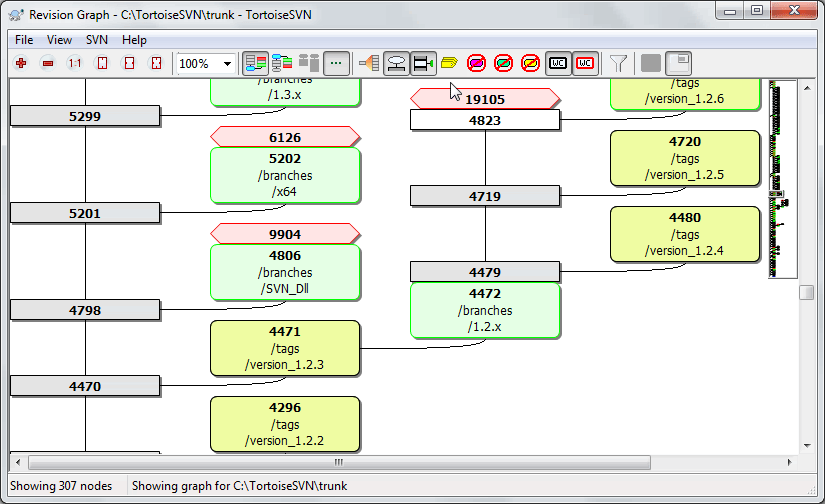
版本分支图

图 4.47. 一个版本分支

一个版本分支


有时候,我们需要知道从哪开始有了分支和标签,同时想知道这条支路是单独的分支还是树型结构。如果需要你可以使用TortoiseSVN版本分支图...

这个版本历史分析图能够显示分支/标签从什么地方开始创建,以及什么时候删除。

重要

In order to generate the graph, TortoiseSVN must fetch all log messages from the repository root. Needless to say this can take several minutes even with a repository of a few thousand revisions, depending on server speed, network bandwidth, etc. If you try this with something like the Apache project which currently has over 500,000 revisions you could be waiting for some time.

The good news is that if you are using log caching, you only have to suffer this delay once. After that, log data is held locally. Log caching is enabled in TortoiseSVN's settings.

版本图节点

Each revision graph node represents a revision in the repository where something changed in the tree you are looking at. Different types of node can be distinguished by shape and colour. The shapes are fixed, but colours can be set using TortoiseSVNSettings

Added or copied items

Items which have been added, or created by copying another file/folder are shown using a rounded rectangle. The default colour is green. Tags and trunks are treated as a special case and use a different shade, depending on the TortoiseSVNSettings

Deleted items

Deleted items eg. a branch which is no longer required, are shown using an octagon (rectangle with corners cut off). The default colour is red.

Renamed items

Renamed items are also shown using an octagon, but the default colour is blue.

分支最新版本

The graph is normally restricted to showing branch points, but it is often useful to be able to see the respective HEAD revision for each branch too. If you select Show HEAD revisions, each HEAD revision nodes will be shown as an ellipse. Note that HEAD here refers to the last revision committed on that path, not to the HEAD revision of the repository.

Working copy revision

If you invoked the revision graph from a working copy, you can opt to show the BASE revision on the graph using Show WC revision, which marks the BASE node with a bold outline.

Modified working copy

If you invoked the revision graph from a working copy, you can opt to show an additional node representing your modified working copy using Show WC modifications. This is an elliptical node with a bold outline in red by default.

Normal item

其他一般的文件用plain rectangle标示。

Note that by default the graph only shows the points at which items were added, copied or deleted. Showing every revision of a project will generate a very large graph for non-trivial cases. If you really want to see all revisions where changes were made, there is an option to do this in the View menu and on the toolbar.

The default view (grouping off) places the nodes such that their vertical position is in strict revision order, so you have a visual cue for the order in which things were done. Where two nodes are in the same column the order is very obvious. When two nodes are in adjacent columns the offset is much smaller because there is no need to prevent the nodes from overlapping, and as a result the order is a little less obvious. Such optimisations are necessary to keep complex graphs to a reasonable size. Please note that this ordering uses the edge of the node on the older side as a reference, i.e. the bottom edge of the node when the graph is shown with oldest node at the bottom. The reference edge is significant because the node shapes are not all the same height.

Changing the View

因为版本图经常很复杂,所以有很多方法剪裁视图。你可以在视图菜单或工具栏找到它们。

分组分支

The default behavior (grouping off) has all rows sorted strictly by revision. As a result, long-living branches with sparse commits occupy a whole column for only a few changes and the graph becomes very broad.

This mode groups changes by branch, so that there is no global revision ordering: Consecutive revisions on a branch will be shown in (often) consecutive lines. Sub-branches, however, are arranged in such a way that later branches will be shown in the same column above older branches to keep the graph slim. As a result, a given row may contain changes from different revisions.

最老的在顶部

正常情况下,在图形底部显示最老的版本,版本树向上生长。使用这个选项,版本树从顶部向下生长。

Align trees on top

When a graph is broken into several smaller trees, the trees may appear either in natural revision order, or aligned at the bottom of the window, depending on whether you are using the Group Branches option. Use this option to grow all trees down from the top instead.

减少交叉行

If the layout of the graph has produced a lot of crossing lines, use this option to clean it up. This may make the layout columns appear in less logical places, for example in a diagonal line rather than a column, and the graph may require a larger area to draw.

Differential path names

Long path names can take a lot of space and make the node boxes very large. Use this option to show only the changed part of a path, replacing the common part with dots. E.g. if you create a branch /branches/1.2.x/doc/html from /trunk/doc/html the branch could be shown in compact form as /branches/1.2.x/.. because the last two levels, doc and html, did not change.

Show all revisions

This does just what you expect and shows every revision where something (in the tree that you are graphing) has changed. For long histories this can produce a truly huge graph.

显示最新版本

它确保每个分支的最新版本永远在图中显示。

精确复制源

When a branch/tag is made, the default behaviour is to show the branch as taken from the last node where a change was made. Strictly speaking this is inaccurate since the branches are often made from the current HEAD rather than a specific revision. So it is possible to show the more correct (but less useful) revision that was used to create the copy. Note that this revision may be younger than the HEAD revision of the source branch.

折叠标签

When a project has many tags, showing every tag as a separate node on the graph takes a lot of space and obscures the more interesting development branch structure. At the same time you may need to be able to access the tag content easily so that you can compare revisions. This option hides the nodes for tags and shows them instead in the tooltip for the node that they were copied from. A tag icon on the right side of the source node indicates that tags were made.

Hide deleted paths

Hides paths which are no longer present at the HEAD revision of the repository, e.g. deleted branches.

Hide unchanged branches

Hides branches where no changes were committed to the respective file or sub-folder. This does not necessarily indicate that the branch was not used, just that no changes were made to this part of it.

Show WC revision

Marks the revision on the graph which corresponds to the update revision of the item you fetched the graph for. If you have just updated, this will be HEAD, but if others have committed changes since your last update your WC may be a few revisions lower down. The node is marked by giving it a bold outline.

Show WC modifications

If your WC contains local changes, this option draws it as a separate elliptical node, linked back to the node that your WC was last updated to. The default outline colour is red. You may need to refresh the graph using F5 to capture recent changes.

过滤器

Sometimes the revision graph contains more revisions than you want to see. This option opens a dialog which allows you to restrict the range of revisions displayed, and to hide particular paths by name.

Tree stripes

Where the graph contains several trees, it is sometimes useful to use alternating colours on the background to help distinguish between trees.

Show overview

Shows a small picture of the entire graph, with the current view window as a rectangle which you can drag. This allows you to navigate the graph more easily. Note that for very large graphs the overview may become useless due to the extreme zoom factor and will therefore not be shown in such cases.

使用图

概览窗口可以使遍历大图更容易。它在小窗口中显示整个图形,高亮显示当前详细显示的部分。你可以通过拖曳高亮区域来改变当前详细显示的部分。

任何时候只要鼠标在版本框上滑过,都会显示该版本的日期、作者和备注信息。

If you select two revisions (Use Ctrl-left click), you can use the context menu to show the differences between these revisions. You can choose to show differences as at the branch creation points, but usually you will want to show the differences at the branch end points, i.e. at the HEAD revision.

你可以用查看单一差异文件的方式来查看差异,它在单一的文件中显示差异。如果你选右键菜单比较版本所有修改过的文件都会呈现在列表中。双击一个文件名可以返回文件版本号和他们差异。

如果右击一个版本你可以使用右键菜单显示日志 来查看它的历史。

You can also merge changes in the selected revision(s) into a different working copy. A folder selection dialog allows you to choose the working copy to merge into, but after that there is no confirmation dialog, nor any opportunity to try a test merge. It is a good idea to merge into an unmodified working copy so that you can revert the changes if it doesn't work out! This is a useful feature if you want to merge selected revisions from one branch to another.

Learn to Read the Revision Graph

First-time users may be surprised by the fact that the revision graph shows something that does not match the user's mental model. If a revision changes multiple copies or branches of a file or folder, for instance, then there will be multiple nodes for that single revision. It is a good practice to start with the leftmost options in the toolbar and customize the graph step-by-step until it comes close to your mental model.

All filter options try lose as little information as possible. That may cause some nodes to change their color, for instance. Whenever the result is unexpected, undo the last filter operation and try to understand what is special about that particular revision or branch. In most cases, the initially expected outcome of the filter operation would either be inaccurate or misleading.

刷新视图

If you want to check the server again for newer information, you can simply refresh the view using F5. If you are using the log cache (enabled by default), this will check the repository for newer commits and fetch only the new ones. If the log cache was in offline mode, this will also attempt to go back online.

If you are using the log cache and you think the message content or author may have changed, you should use the log dialog to refresh the messages you need. Since the revision graph works from the repository root, we would have to invalidate the entire log cache, and refilling it could take a very long time.

Pruning Trees

A large tree can be difficult to navigate and sometimes you will want to hide parts of it, or break it down into a forest of smaller trees. If you hover the mouse over the point where a node link enters or leaves the node you will see one or more popup buttons which allow you to do this.

Click on the minus button to collapse the attached sub-tree.

Click on the plus button to expand a collapsed tree. When a tree has been collapsed, this button remains visible to indicate the hidden sub-tree.

Click on the cross button to split the attached sub-tree and show it as a separate tree on the graph.

Click on the circle button to reattach a split tree. When a tree has been split away, this button remains visible to indicate that there is a separate sub-tree.

Click on the graph background for the main context menu, which offers options to Expand all and Join all. If no branch has been collapsed or split, the context menu will not be shown.