Daftar Isi
TortoiseMerge mempunyai tiga modus tampilan utama: satu-pane, two-pane dan tiga pane. Satu/dua-pane digunakan untuk melihat perubahan dan tiga-pane digunakan untuk menyelesaikan konflik.
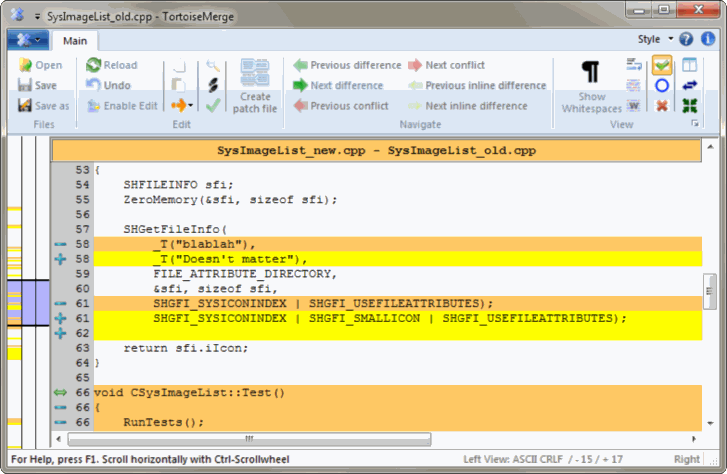
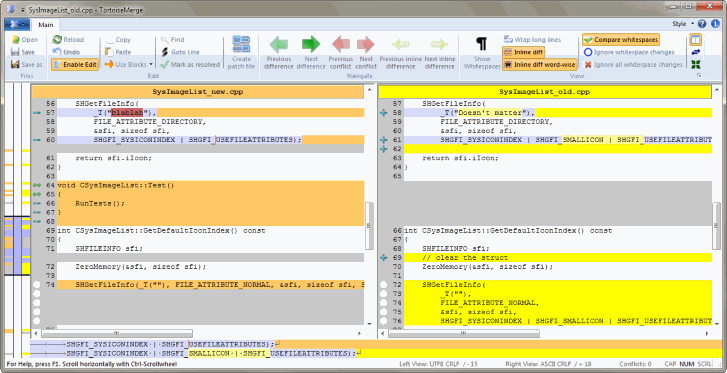
Tampilan dua pane mempunyai beberapa fitur yang tidak tersedia dalam tampilan satu pane:
Perubahan di dalam baris yang diubah ditampilkan dalam warna berbeda. Bagian string yang ditambahkan ditampilkan dengan warna lebih terang, tetapi tentunya Anda bisa mengkonfigurasi warna-warna yang digunakan di sini. Bagian yang dihapus ditunjukan dengan warna garis vertikal coklat tua dalam string. Periksa foto layar untuk melihat bagaimana ini bekerja.
Reorganisasi kode biasanya berarti banyak perubahan dalam spasi putih (spasi, tab, baris baru) tapi tidak ada perubahan kode aktual. Sebagai contoh, Anda memisahkan baris yang sangat panjang menjadi beberapa baris, atau kadang kala Anda memampatkan beberapa baris bersama menjadi satu baris.
Perubahan-perubahan demikian ditandai dengan simbol lingkaran putih di sisi kiri pandangan. Jika Anda melihat lingkaran putih tersebut, Anda segera mengetahui bahwa tidak ada perubahan kode secara nyata disana dan Anda tidak harus memeriksa blok perubahan selanjutnya.
Hand editing of the file in the right pane is possible in two-pane view. Such changes are marked with a pencil symbol. Hand editing of the file in the left pane is also possible, only when is pressed when the left pane is active.
Jika Anda ingin membandingkan/menggabung tiga file, TortoiseMerge akan memperlihatkan kepada Anda perbedaan dalam tampilan tiga pane. Tampilan ini juga digunakan jika Anda perlu untuk menyelesaikan file berkonflik.
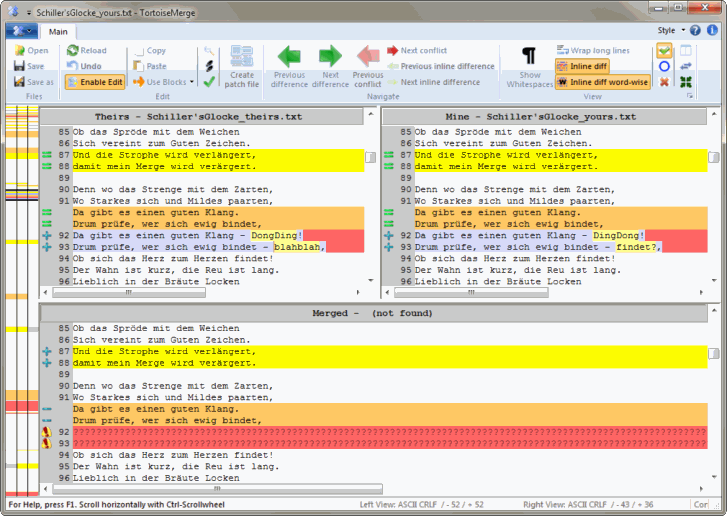
Pane kiri memperlihatkan kepada Anda perbedaan antara file Mereka dan file Base, sementara pane kanan memperlihatkan kepada Anda perbedaan antara file Saya dan file Base. Pane bawah memperlihatkan kepada Anda hasil dari penggabungan Base, Saya dan Mereka dengan kemungkinan konflik.
Jika Anda mengarahkan mouse di atas judul pane, tooltip akan menampilkan nama file yang digunakan untuk diff dalam setiap pane.
Hand editing of the file in the left pane or right pane is also possible, only when is pressed when that pane is active.
Jika TortoiseMerge bisa mengurai berkas tambalan ia akan memperlihatkan kepada Anda jendela kecil dengan semua berkas yang mempunyai perubahan menurut berkas tambalan.
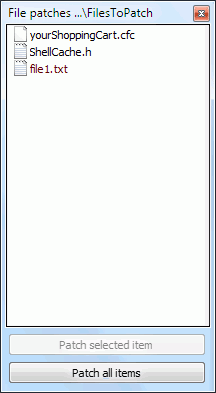
Jika nama berkas ditampilkan hitam, maka tambalan bisa diterapkan tanpa masalah. Itu berarti file tidak ketinggalan jaman menurut tambalan. Akan tetapi, jika nama berkas ditampilkan merah, tambalan tidak bisa diterapkan secara langsung karena Anda sudah mengubah berkas itu.
The patch file window has a context menu which allows you to preview the effect of the patch on the current file (apply without saving), to apply and save the changes for the selected file, or to apply and save changes to all files in the list. The double click action is to preview.