One of the commonest requirements in project development is to see what has changed. You might want to look at the differences between two revisions of the same file, or the differences between two separate files. TortoiseSVN provides a built-in tool named TortoiseMerge for viewing differences of text files. For viewing differences of image files, TortoiseSVN also has a tool named TortoiseIDiff. Of course, you can use your own favourite diff program if you like.
- Local changes
If you want to see what changes you have made in your working copy, just use the explorer context menu and select → .
- Difference to another branch/tag
If you want to see what has changed on trunk (if you are working on a branch) or on a specific branch (if you are working on trunk), you can use the explorer context menu. Just hold down the Shift key while you right click on the file. Then select → . In the following dialog, specify the URL in the repository with which you want to compare your local file to.
You can also use the repository browser and select two trees to diff, perhaps two tags, or a branch/tag and trunk. The context menu there allows you to compare them using . Read more in the section called “Comparing Folders”.
- Difference from a previous revision
If you want to see the difference between a particular revision and your working copy, use the Revision Log dialog, select the revision of interest, then select from the context menu.
If you want to see the difference between the last committed revision and your working copy, assuming that the working copy hasn't been modified, just right click on the file. Then select → . This will perform a diff between the revision before the last-commit-date (as recorded in your working copy) and the working BASE. This shows you the last change made to that file to bring it to the state you now see in your working copy. It will not show changes newer than your working copy.
- Difference between two previous revisions
If you want to see the difference between two revisions which are already committed, use the Revision Log dialog and select the two revisions you want to compare (using the usual Ctrl-modifier). Then select from the context menu.
If you did this from the revision log for a folder, a Compare Revisions dialog appears, showing a list of changed files in that folder. Read more in the section called “Comparing Folders”.
- All changes made in a commit
If you want to see the changes made to all files in a particular revision in one view, you can use Unified-Diff output (GNU patch format). This shows only the differences with a few lines of context. It is harder to read than a visual file compare, but will show all the changes together. From the Revision Log dialog select the revision of interest, then select from the context menu.
- Difference between files
If you want to see the differences between two different files, you can do that directly in explorer by selecting both files (using the usual Ctrl-modifier). Then from the explorer context menu select → .
If the files to compare are not located in the same folder, use the command → to mark the first file for diffing, then browse to the second file and use → . To remove the marked file, use the command → again, but hold down the Ctrl-modifier while clicking on it.
- Difference between WC file/folder and a URL
If you want to see the differences between a file in your working copy, and a file in any Subversion repository, you can do that directly in explorer by selecting the file then holding down the Shift key whilst right clicking to obtain the context menu. Select → . You can do the same thing for a working copy folder. TortoiseMerge shows these differences in the same way as it shows a patch file - a list of changed files which you can view one at a time.
- Difference with blame information
If you want to see not only the differences but also the author, revision and date that changes were made, you can combine the diff and blame reports from within the revision log dialog. Read the section called “Blame Differences” for more detail.
- Difference between folders
The built-in tools supplied with TortoiseSVN do not support viewing differences between directory hierarchies. But if you have an external tool which does support that feature, you can use that instead. In the section called “External Diff/Merge Tools” we tell you about some tools which we have used.
If you have configured a third party diff tool, you can use Shift when selecting the Diff command to use the alternate tool. Read the section called “External Program Settings” to find out about configuring other diff tools.
Sometimes in the life of a project you might change the line endings
from CRLF to LF, or you may
change the indentation of a section. Unfortunately this will mark
a large number of lines as changed, even though there is no change
to the meaning of the code. The options here will help to manage
these changes when it comes to comparing and applying differences.
You will see these settings in the Merge and
Blame dialogs, as well as in the settings for
TortoiseMerge.
Ignore line endings excludes changes which are due solely to difference in line-end style.
Compare whitespaces includes all changes in indentation and inline whitespace as added/removed lines.
Ignore whitespace changes excludes changes which are due solely to a change in the amount or type of whitespace, e.g. changing the indentation or changing tabs to spaces. Adding whitespace where there was none before, or removing a whitespace completely is still shown as a change.
Ignore all whitespaces excludes all whitespace-only changes.
Naturally, any line with changed content is always included in the diff.
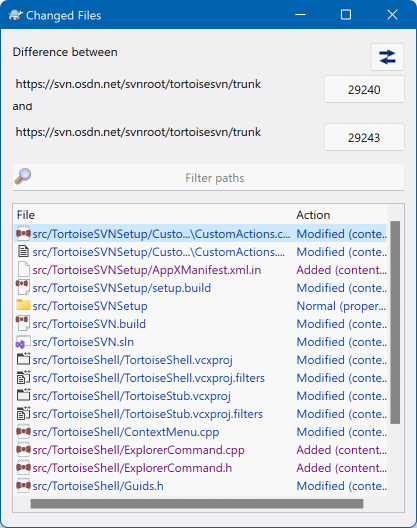
When you select two trees within the repository browser, or when
you select two revisions of a folder in the log dialog, you can
→ .
This dialog shows a list of all files which have changed and allows you to compare or blame them individually using context menu.
You can export a change tree, which is useful if you need to send someone else your project tree structure, but containing only the files which have changed. This operation works on the selected files only, so you need to select the files of interest - usually that means all of them - and then → . You will be prompted for a location to save the change tree.
You can also export the list of changed files to a text file using → .
If you want to export the list of files and the actions (modified, added, deleted) as well, you can do that using → .
The button at the top allows you to change the direction of comparison. You can show the changes need to get from A to B, or if you prefer, from B to A.
The buttons with the revision numbers on can be used to change to a different revision range. When you change the range, the list of items which differ between the two revisions will be updated automatically.
If the list of filenames is very long, you can use the search box
to reduce the list to filenames containing specific text. Note that
a simple text search is used, so if you want to restrict the list
to C source files you should enter .c rather than
*.c.
There are many tools available for diffing text files, including our own TortoiseMerge, but we often find ourselves wanting to see how an image file has changed too. That's why we created TortoiseIDiff.
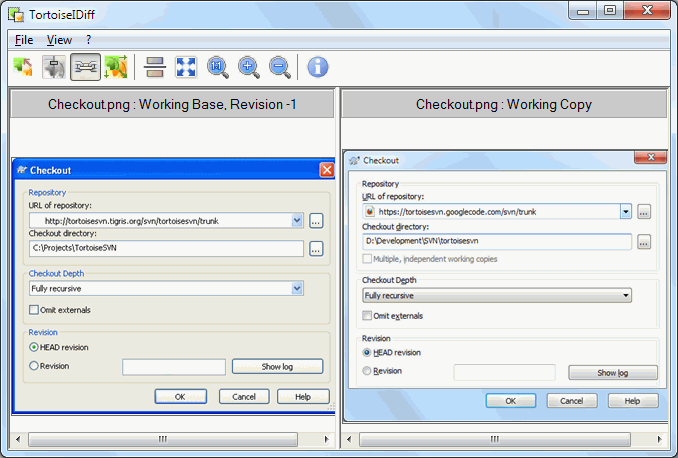
→
for any of the common image file formats will start TortoiseIDiff
to show image differences. By default the images are displayed side-by-side
but you can use the View menu or toolbar to switch to a top-bottom
view instead, or if you prefer, you can overlay the images and pretend
you are using a lightbox.
Naturally you can also zoom in and out and pan around the image. You can also pan the image simply by left-dragging it. If you select the Link images together option, then the pan controls (scrollbars, mousewheel) on both images are linked.
An image info box shows details about the image file, such as the size in pixels, resolution and colour depth. If this box gets in the way, use → to hide it. You can get the same information in a tooltip if you hover the mouse over the image title bar.
When the images are overlaid, the relative intensity of the images (alpha blend) is controlled by a slider control at the left side. You can click anywhere in the slider to set the blend directly, or you can drag the slider to change the blend interactively. Ctrl+Shift-Wheel to change the blend.
The button above the slider toggles between 0% and 100% blends, and if you double click the button, the blend toggles automatically every second until you click the button again. This can be useful when looking for multiple small changes.
Sometimes you want to see a difference rather than a blend. You might have the image files for two revisions of a printed circuit board and want to see which tracks have changed. If you disable alpha blend mode, the difference will be shown as an XOR of the pixel colour values. Unchanged areas will be plain white and changes will be coloured.
When you want to diff non-text documents you normally have to use the software used to create the document as it understands the file format. For the commonly used Microsoft Office and Open Office suites there is indeed some support for viewing differences and TortoiseSVN includes scripts to invoke these with the right settings when you diff files with the well-known file extensions. You can check which file extensions are supported and add your own by going to → and clicking in the External Programs section.
Problems with Office 2010
If you installed the Click-to-Run version of Office 2010 and you try to diff documents you may get an error message from Windows Script Host something like this: “ActiveX component can't create object: word.Application”. It seems you have to use the MSI-based version of Office to get the diff functionality.
If the tools we provide don't do what you need, try one of the many open-source or commercial programs available. Everyone has their own favourites, and this list is by no means complete, but here are a few that you might consider:
- WinMerge
WinMerge is a great open-source diff tool which can also handle directories.
- Perforce Merge
Perforce is a commercial RCS, but you can download the diff/merge tool for free. Get more information from Perforce .
- KDiff3
KDiff3 is a free diff tool which can also handle directories. You can download it from here .
- SourceGear DiffMerge
SourceGear Vault is a commercial RCS, but you can download the diff/merge tool for free. Get more information from SourceGear .
- ExamDiff
ExamDiff Standard is freeware. It can handle files but not directories. ExamDiff Pro is shareware and adds a number of goodies including directory diff and editing capability. In both flavours, version 3.2 and above can handle unicode. You can download them from PrestoSoft .
- Beyond Compare
Similar to ExamDiff Pro, this is an excellent shareware diff tool which can handle directory diffs and unicode. Download it from Scooter Software .
- Araxis Merge
Araxis Merge is a useful commercial tool for diff and merging both files and folders. It does three-way comparison in merges and has synchronization links to use if you've changed the order of functions. Download it from Araxis .
Read the section called “External Program Settings” for information on how to set up TortoiseSVN to use these tools.